
Nothing’s more frustrating than your Saily eSIM not working when you need connectivity the most. Whether you’re trying to join an important video call from a Barcelona café or upload client work from a Tokyo coworking space, connection issues can derail your entire day. The good news? Most problems when your Saily eSIM is not working have straightforward solutions that don’t require technical expertise.
This comprehensive troubleshooting guide addresses the most common scenarios when your Saily eSIM is not working, providing step-by-step solutions that get you back online quickly. From activation failures to sudden connection drops, we’ll help you diagnose and resolve these issues efficiently.
Common reasons why your Saily eSIM is not working

Understanding why your Saily eSIM is not working requires examining several potential culprits. The most frequent issues stem from activation problems, device compatibility conflicts, network settings misconfiguration, or simple connectivity oversights.
Device compatibility represents a primary factor when your Saily eSIM is not working. Not all smartphones support eSIM technology, and even those that do may have carrier restrictions preventing proper activation. iPhones before the XR model lack eSIM capability entirely, while some Android devices require specific firmware versions.
Network configuration issues often cause problems when your Saily eSIM is not working correctly. Incorrect APN settings, disabled data roaming, or conflicting dual-SIM configurations can prevent a successful connection even after proper activation.
💡 Did you know? Approximately 70% of eSIM connection issues resolve through basic troubleshooting steps like device restarts and network setting verification, making professional technical support unnecessary in most cases.
Activation-related problems
Activation failures represent the most common scenario when users report that their Saily eSIM is not working. These problems typically occur during initial setup when the QR code scan fails, network connectivity is insufficient, or device storage lacks available eSIM slots.
QR code scanning issues can prevent successful activation, particularly in environments with poor lighting or when using damaged codes. The Saily app requires a clear, unobstructed view of the QR code and sufficient processing time to download the eSIM profile correctly.
Network connectivity during activation is crucial for successful profile download, as weak WiFi signals can interrupt the process. Ensure you have stable internet connectivity before beginning the activation process to prevent partial installations that leave your Saily eSIM not working properly.
Device compatibility and settings issues
Compatibility problems extend beyond basic eSIM support to include carrier unlocking, regional restrictions, and software version requirements. Many users discover their Saily eSIM is not working because their device remains carrier-locked, preventing activation of third-party eSIM profiles.
Software version compatibility affects eSIM functionality, particularly on older devices running outdated operating systems. iOS devices require version 12.1 or later for basic eSIM support, while Android requirements vary by manufacturer and model.
Dual-SIM configuration conflicts can cause your Saily eSIM to appear not to work when both physical and embedded SIMs compete for network resources. Proper line assignment and data routing configuration become essential for reliable connectivity in these scenarios.
Step-by-step solutions when your Saily eSIM is not working
When your Saily eSIM is not working, following a systematic troubleshooting approach helps identify and resolve issues efficiently. Begin with basic connectivity checks before progressing to more advanced configuration adjustments.
🌟 Pro tip: before troubleshooting, screenshot your current network settings as a backup reference. This precaution allows quick restoration if advanced fixes create additional configuration problems.
Basic troubleshooting steps
Power cycling your device represents the most effective first step when your Saily eSIM is not working. This process refreshes network connections, clears temporary system glitches, and reinitializes eSIM profiles.
For iPhone users, press and hold both the side button and volume button until the power slider appears. Drag the slider to power off completely, wait 30 seconds, then press and hold the side button until the Apple logo appears.
Android device restart procedures vary by manufacturer, but typically involve holding the power button until restart options appear. Select “Restart” to ensure a complete system refresh and network reinitialization.
Airplane mode cycling provides a targeted network reset without a full device restart. Enable airplane mode for 30 seconds, then disable it to force network reconnection and eSIM profile refresh.
Network settings verification
Network settings verification becomes necessary when basic troubleshooting doesn’t resolve problems with your Saily eSIM not working. Check that mobile data is enabled for your Saily eSIM line and that data roaming is activated if you’re traveling internationally.
For iOS devices, navigate to Settings > Cellular > select your Saily eSIM line > ensure “Turn On This Line” is enabled and “Data Roaming” is activated. Verify that “Cellular Data” shows your Saily eSIM as the selected line.
Android configuration varies by manufacturer, but generally involves Settings > Network & Internet > Mobile Network > select your Saily eSIM > enable both “Use SIM” and “Roaming” options.
APN settings occasionally require manual configuration when automatic setup fails. Saily typically uses “1GLOBAL” as the network provider, which should configure automatically. If manual entry is required, contact Saily support for specific parameters.
Advanced fixes for persistent Saily eSIM problems
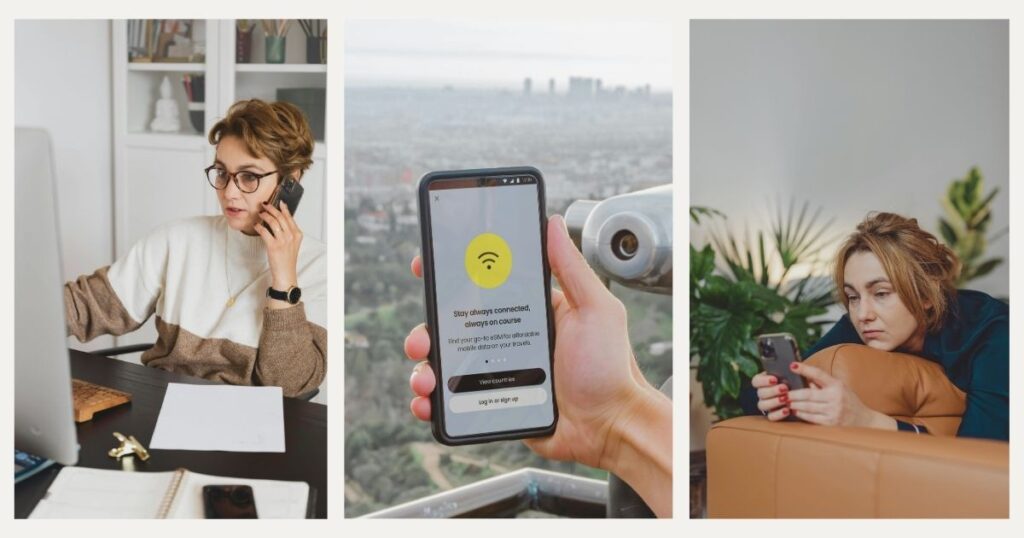
When standard troubleshooting fails to resolve why your Saily eSIM is not working, more advanced solutions may be necessary. These approaches address deeper configuration issues and system-level conflicts that prevent proper eSIM functionality.
Network settings reset
Network settings reset provides comprehensive restoration when your Saily eSIM continues not working despite targeted fixes. This process removes all saved network configurations, requiring complete reconfiguration but often resolving persistent connectivity problems.
iOS network reset involves navigating to Settings > General > Transfer or Reset iPhone > Reset > Reset Network Settings. This process removes all WiFi passwords, Bluetooth pairings, and cellular settings, requiring complete reconfiguration.
Before performing a network reset, document important information, including WiFi passwords and any custom network settings you’ll need to restore. The reset process is irreversible and affects all network-related configurations.
Android network reset procedures vary significantly between manufacturers. Samsung devices typically use Settings > General Management > Reset > Reset Network Settings, while Google Pixel devices use Settings > System > Reset > Reset Network Settings.
After network reset, reinstall your Saily eSIM profile using the original activation method. The fresh network configuration often resolves compatibility conflicts, preventing proper eSIM functionality.
eSIM profile reinstallation
Profile reinstallation becomes necessary when your Saily eSIM profile becomes corrupted or incorrectly configured. Remove the existing profile completely before attempting reinstallation to avoid conflicts between partial configurations.
iOS profile removal involves Settings > Cellular > select your Saily eSIM > Remove Cellular Plan. Confirm removal, then restart your device before attempting a fresh installation using your original QR code or activation credentials.
Android profile management varies by device, but typically involves Settings > Network & Internet > Mobile Network > Advanced > select your Saily eSIM > Delete. Clear any remaining configuration data before reinstalling to ensure a clean profile installation.
Device-specific solutions for Saily eSIM issues
Different devices exhibit unique behaviors when your Saily eSIM is not working, requiring targeted approaches based on manufacturer-specific implementations of eSIM technology. Understanding these device-specific quirks helps resolve problems that generic troubleshooting might miss.
iPhone-specific troubleshooting
iPhone users experiencing a Saily eSIM not working should verify iOS version compatibility first. Devices running iOS 12.1 or later support eSIM functionality, but newer iOS versions provide improved stability and compatibility.
Check carrier settings updates through Settings > General > About. If an update is available, a pop-up will appear prompting installation. These updates often include eSIM compatibility improvements and carrier-specific fixes.
Verify eSIM capability through Settings > Cellular > Add Cellular Plan. If this option appears, your iPhone supports eSIM functionality. If missing, your device may be carrier-locked or running incompatible firmware.
Android device troubleshooting
Android eSIM support varies significantly between manufacturers, with Samsung, Google Pixel, and OnePlus offering the most reliable implementations. Verify your specific device model supports eSIM through manufacturer documentation.
Check for system updates through Settings > System > System Update, as manufacturers frequently release eSIM compatibility improvements through firmware updates. Install any available updates before troubleshooting further.
Clear the Phone app cache through Settings > Apps > Phone > Storage > Clear Cache, as corrupt cached data sometimes interferes with eSIM functionality on Android devices.
When to contact support and prevention tips

Recognizing when your Saily eSIM is not working and requires professional support saves time and prevents unnecessary frustration. Certain issues stem from provider-side problems, account-specific restrictions, or technical limitations that only Saily’s support team can resolve.
Contact Saily support immediately if you receive specific error messages during activation, if your account shows active status but connectivity remains impossible, or if you’ve exhausted device-level troubleshooting without success.
💡 Did you know? Saily’s support team can remotely diagnose many eSIM problems and provide replacement activation codes when technical issues prevent standard troubleshooting from working effectively.
Account and plan-related issues
Account-specific problems often cause your Saily eSIM to appear not to be working despite correct device configuration. These issues include plan expiration, data limit exhaustion, payment processing problems, or regional restrictions affecting your specific account.
Check your Saily app dashboard for plan status, remaining data allowance, and active validity dates. Expired plans or depleted data allowances require new purchases rather than technical troubleshooting.
Payment verification becomes necessary if your plan shows active status but connectivity fails. Failed payment processing can suspend service even when your device shows proper eSIM installation and configuration.
Prevention and backup planning
Consider alternative connectivity options while waiting for support resolution. If immediate internet access is crucial for your work, having backup options like Holafly’s instant activation service ensures you maintain productivity while resolving Saily eSIM issues.
Preventing future instances of your Saily eSIM not working requires proactive device management and understanding common scenarios that trigger connectivity problems. Keep your device software updated to maintain optimal eSIM compatibility and monitor your data usage through the Saily app to avoid unexpected service suspension when plans reach data limits.
Establish redundant connectivity options to maintain productivity when your primary Saily eSIM encounters problems. Multiple connectivity sources prevent complete communication isolation during technical difficulties.
For comprehensive eSIM troubleshooting resources and backup connectivity strategies, explore Nomada’s complete eSIM troubleshooting guide for additional problem-solving techniques. Visit Nomada for more digital nomad connectivity resources and travel technology guidance.
Ready to maintain reliable connectivity during your travels? Implement these troubleshooting techniques and establish backup plans to ensure your eSIM service supports your nomadic lifestyle without interruption! 🌍
Frequently asked questions about Saily eSIM not working
Your Saily eSIM may appear installed but not work due to incorrect network settings, disabled data roaming, or APN configuration issues. Verify that mobile data is enabled for your Saily line, data roaming is activated, and restart your device to refresh network connections. If problems persist, check if you’ve exceeded your data allowance or if your plan has expired.
Yes, carrier-locked devices often prevent third-party eSIM activation, causing your Saily eSIM to appear not to work even with proper installation procedures. Contact your carrier to unlock your device before attempting eSIM activation. Some carriers require account standing verification or early termination fees for unlocking services.
When your previously functional Saily eSIM stops working suddenly, check your data allowance first, as exhausted plans suspend service automatically. Verify your plan hasn’t expired and restart your device to refresh network connections. If problems persist after verifying account status, try toggling airplane mode or resetting network settings.
Allow 10-15 minutes after installation for initial network registration and configuration. If your Saily eSIM shows no connectivity after this period, begin troubleshooting with device restart and network setting verification. Complete activation failures typically display error messages immediately rather than showing extended loading periods.
Multiple eSIM profiles can create configuration conflicts, particularly when both profiles attempt to use data services simultaneously. Ensure only your active Saily eSIM is enabled for data usage while keeping backup profiles disabled. Device storage limitations may also prevent proper eSIM functionality when too many profiles are installed.